
68 KiB
+++ title = "A Minimal Rust Kernel" weight = 2 path = "minimal-rust-kernel" date = 2018-02-10
[extra] chapter = "Bare Bones" +++
In this post we create a minimal 64-bit Rust kernel for the x86 architecture. We build upon the freestanding Rust binary from the previous post to create a bootable disk image, that prints something to the screen.
This blog is openly developed on GitHub. If you have any problems or questions, please open an issue there. You can also leave comments at the bottom. The complete source code for this post can be found in the post-02 branch.
The Boot Process
When you turn on a computer, it begins executing firmware code that is stored in motherboard ROM. This code performs a power-on self-test, detects available RAM, and pre-initializes the CPU and hardware. Afterwards it looks for a bootable disk and starts booting the operating system kernel.
On x86, there are two firmware standards: the “Basic Input/Output System“ (BIOS) and the newer “Unified Extensible Firmware Interface” (UEFI). The BIOS standard is old and outdated, but simple and well-supported on any x86 machine since the 1980s. UEFI, in contrast, is more modern and has much more features, but is more complex to set up (at least in my opinion).
Currently, we only provide BIOS support, but support for UEFI is planned, too. If you'd like to help us with this, check out the Github issue.
BIOS
Almost all x86 systems have support for BIOS booting, including newer UEFI-based machines that use an emulated BIOS. This is great, because you can use the same boot logic across all machines from the last centuries. But this wide compatibility is at the same time the biggest disadvantage of BIOS booting, because it means that the CPU is put into a 16-bit compatibility mode called real mode before booting so that archaic bootloaders from the 1980s would still work.
Boot Process
When you turn on a computer, it loads the BIOS from some special flash memory located on the motherboard. The BIOS runs self test and initialization routines of the hardware, then it looks for bootable disks. If it finds one, the control is transferred to its bootloader, which is a 512-byte portion of executable code stored at the disk's beginning. Most bootloaders are larger than 512 bytes, so bootloaders are commonly split into a small first stage, which fits into 512 bytes, and a second stage, which is subsequently loaded by the first stage.
The bootloader has to determine the location of the kernel image on the disk and load it into memory. It also needs to switch the CPU from the 16-bit real mode first to the 32-bit protected mode, and then to the 64-bit long mode, where 64-bit registers and the complete main memory are available. Its third job is to query certain information (such as a memory map) from the BIOS and pass it to the OS kernel.
Writing a BIOS bootloader is a bit cumbersome as it requires assembly language and a lot of non insightful steps like “write this magic value to this processor register”. Therefore we don't cover bootloader creation in this post and instead use the existing bootloader crate to make our kernel bootable. If you are interested in building your own BIOS bootloader: Stay tuned, a set of posts on this topic is already planned!
The Future of BIOS
As noted above, most modern systems still support booting operating systems written for the legacy BIOS firmware for backwards-compatibility. However, there are [plans to remove this support soon][end-bios-support]. Thus, it is strongly recommended to make operating system kernels compatible with the newer UEFI standard too. Fortunately, it is possible to create a kernel that supports booting on both BIOS (for older systems) and UEFI (for modern systems).
UEFI
The Unified Extensible Firmware Interface (UEFI) replaces the classical BIOS firmware on most modern computers. The specification provides lots of useful features that make bootloader implementations much simpler:
- It supports initializing the CPU directly into 64-bit mode, instead of starting in a DOS-compatible 16-bit mode like the BIOS firmware.
- It understands disk partitions and executable files. Thus it is able to fully load the bootloader from disk into memory (no 512-byte large "first stage" is required anymore).
- A standardized specification minimizes the differences between systems. This isn't the case for the legacy BIOS firmware, so that bootloaders often have to try different methods because of hardware differences.
- The specification is independent of the CPU architecture, so that the same interface can be used to boot on
x86_64andARMCPUs. - It natively supports network booting without requiring additional drivers.
The UEFI standard also tries to make the boot process safer through a so-called "secure boot" mechanism. The idea is that the firmware only allows loading bootloaders that are signed by a trusted digital signature. Thus, malware should be prevented from compromising the early boot process.
Issues & Criticism
While most of the UEFI specification sounds like a good idea, there are also many issues with the standard. The main issue for most people is the fear that the secure boot mechanism can be used to lock users into the Windows operating system and thus prevent the installation of alternative operating systems such as Linux.
Another point of criticism is that the large number of features make the UEFI firmware very complex, which increases the chance that there are some bugs in the firmware implementation. This can lead to security problems because the firmware has complete control over the hardware. For example, a vulnerability in the built-in network stack of an UEFI implementation can allow attackers to compromise the system and e.g. silently observe all I/O data. The fact that most UEFI implementations are not open-source makes this issue even more problematic, since there is no way to audit the firmware code for potential bugs.
While there are open firmware projects such as coreboot that try to solve these problems, there is no way around the UEFI standard on most modern consumer computers. So we have to live with these drawbacks for now if we want to build a widely compatible bootloader and operating system kernel.
Boot Process
The UEFI boot process works in the following way:
- After powering on and self-testing all components, the UEFI firmware starts looking for special bootable disk partitions called EFI system partitions. These partitions must be formatted with the FAT file system and assigned a special ID that indicates them as EFI system partition.
- If it finds such a partition, the firmware looks for an executable file named
efi\boot\bootx64.efi(on x86_64 systems). This executable must use the Portable Executable (PE) format, which is common in the Windows world. - It then loads the executable from disk to memory, sets up the execution environment (CPU state, page tables, etc.) in a defined way, and finally jumps to the entry point of the loaded executable.
From this point on, the bootloader executable has control and can proceed to load the operating system kernel. However, it probably needs additional information about the system to do so, for example the amount of available memory in the system. For this reason, the UEFI firmware passes a pointer to a special system table as an argument when invoking the bootloader entry point function. Using this table, the bootloader can query various system information and even invoke special functions provided by the UEFI firmware, for example for accessing the hard disk.
How we will use UEFI
As it is probably clear at this point, the UEFI interface is very powerful and complex. The wide range of functionality makes it even possible to write an operating system directly as an UEFI application, using the UEFI services instead of creating own drivers. In practice, however, most operating systems use UEFI only for the bootloader since own drivers give you more control over the system. We will also follow this path for our OS implementation.
To keep this post focused, we won't cover the creation of an UEFI bootloader in this post. Instead, we will use the already mentioned bootloader crate, which allows loading our kernel on both UEFI and BIOS systems.
If you're interested in how to create an UEFI bootloader: We are planning to cover this in detail in a separate series of posts. If you can't wait, check out our uefi crate and the An EFI App a bit rusty post by Gil Mendes.
The Multiboot Standard
To avoid that every operating system implements its own bootloader, which is only compatible with a single OS, the Free Software Foundation created an open bootloader standard called Multiboot in 1995. The standard defines an interface between the bootloader and operating system, so that any Multiboot compliant bootloader can load any Multiboot compliant operating system on both BIOS and UEFI systems. The reference implementation is GNU GRUB, which is the most popular bootloader for Linux systems.
To make a kernel Multiboot compliant, one just needs to insert a so-called Multiboot header at the beginning of the kernel file. This makes it very easy to boot an OS in GRUB. However, GRUB and the Multiboot standard have some problems too:
- The standard is designed to make the bootloader simple instead of the kernel. For example, the kernel needs to be linked with an adjusted default page size, because GRUB can't find the Multiboot header otherwise. Another example is that the boot information, which is passed to the kernel, contains lots of architecture dependent structures instead of providing clean abstractions.
- The standard supports only the 32-bit protected mode on BIOS systems. This means that you still have to do the CPU configuration to switch to the 64-bit long mode.
- For UEFI systems, the standard provides very little added value as it simply exposes the normal UEFI interface to kernels.
- Both GRUB and the Multiboot standard are only sparsely documented.
- GRUB needs to be installed on the host system to create a bootable disk image from the kernel file. This makes development on Windows or Mac more difficult.
Because of these drawbacks we decided to not use GRUB or the Multiboot standard for this series. However, we plan to add Multiboot support to our bootloader crate, so that it's possible to load your kernel on a GRUB system too. If you're interested in writing a Multiboot compliant kernel, check out the first edition of this blog series.
Minimal Kernel
Now that we roughly know how a computer boots, it's time to create our own minimal kernel. Our goal is to create a disk image that prints something to the screen when booted. For that we build upon the freestanding Rust binary from the previous post.
As you may remember, we built the freestanding binary through cargo, but depending on the operating system we needed different entry point names and compile flags. That's because cargo builds for the host system by default, i.e. the system you're running on. This isn't something we want for our kernel, because a kernel that runs on top of e.g. Windows does not make much sense. Instead, we want to compile for a clearly defined target system.
Installing Rust Nightly
Rust has three release channels: stable, beta, and nightly. The Rust Book explains the difference between these channels really well, so take a minute and check it out. For building an operating system we will need some experimental features that are only available on the nightly channel, so we need to install a nightly version of Rust.
The recommened tool to manage Rust installations is rustup. It allows you to install nightly, beta, and stable compilers side-by-side and makes it easy to update them. With rustup you can use a nightly compiler for the current directory by running rustup override set nightly. Alternatively, you can add a file called rust-toolchain with the content nightly to the project's root directory. After doing that, you can verify that you have a nightly version installed and active by running rustc --version: The version number should contain -nightly at the end.
The nightly compiler allows us to opt-in to various experimental features by using so-called feature flags at the top of our file. For example, we could enable the experimental asm! macro for inline assembly by adding #![feature(asm)] to the top of our main.rs. Note that such experimental features are completely unstable, which means that future Rust versions might change or remove them without prior warning. For this reason we will only use them if absolutely necessary.
Target Specification
Cargo supports different target systems through the --target parameter. The target is specified as a so-called target triple, which describes the CPU architecture, the vendor, the operating system, and the ABI. For example, the x86_64-unknown-linux-gnu target triple describes a system with a x86_64 CPU, no clear vendor and a Linux operating system with the GNU ABI. Rust supports many different target triples, including arm-linux-androideabi for Android or wasm32-unknown-unknown for WebAssembly.
For our target system, however, we require some special configuration parameters (e.g. no underlying OS), so none of the existing target triples fits. Fortunately, Rust allows us to define our own target through a JSON file. For example, a JSON file that describes the x86_64-unknown-linux-gnu target looks like this:
{
    "llvm-target": "x86_64-unknown-linux-gnu",
    "data-layout": "e-m:e-i64:64-f80:128-n8:16:32:64-S128",
    "arch": "x86_64",
    "target-endian": "little",
    "target-pointer-width": "64",
    "target-c-int-width": "32",
    "os": "linux",
    "executables": true,
    "linker-flavor": "gcc",
    "pre-link-args": ["-m64"],
    "morestack": false
}
Most fields are required by LLVM to generate code for that platform. For example, the data-layout field defines the size of various integer, floating point, and pointer types. Then there are fields that Rust uses for conditional compilation, such as target-pointer-width. The third kind of fields define how the crate should be built. For example, the pre-link-args field specifies arguments passed to the linker.
We also target x86_64 systems with our kernel, so our target specification will look very similar to the one above. Let's start by creating a x86_64-blog_os.json file (choose any name you like) with the common content:
{
    "llvm-target": "x86_64-unknown-none",
    "data-layout": "e-m:e-i64:64-f80:128-n8:16:32:64-S128",
    "arch": "x86_64",
    "target-endian": "little",
    "target-pointer-width": "64",
    "target-c-int-width": "32",
    "os": "none",
    "executables": true
}
Note that we changed the OS in the llvm-target and the os field to none, because our kernel will run on bare metal.
We add the following build-related entries:
-
Override the default linker:
"linker-flavor": "ld.lld",
"linker": "rust-lld",
Instead of using the platform's default linker (which might not support Linux targets), we use the cross platform LLD linker that is shipped with Rust for linking our kernel.
-
Abort on panic:
"panic-strategy": "abort",This setting specifies that the target doesn't support stack unwinding on panic, so instead the program should abort directly. This has the same effect as the
panic = "abort"option in our Cargo.toml, so we can remove it from there. (Note that in contrast to the Cargo.toml option, this target option also applies when we recompile thecorelibrary later in this post. So be sure to add this option, even if you prefer to keep the Cargo.toml option.) -
Disable the red zone:
"disable-redzone": true,We're writing a kernel, so we'll need to handle interrupts at some point. To do that safely, we have to disable a certain stack pointer optimization called the “red zone”, because it would cause stack corruptions otherwise. For more information, see our separate post about disabling the red zone.
-
Disable SIMD:
"features": "-mmx,-sse,+soft-float",The
featuresfield enables/disables target features. We disable themmxandssefeatures by prefixing them with a minus and enable thesoft-floatfeature by prefixing it with a plus. Note that there must be no spaces between different flags, otherwise LLVM fails to interpret the features string.The
mmxandssefeatures determine support for Single Instruction Multiple Data (SIMD) instructions, which can often speed up programs significantly. However, using the large SIMD registers in OS kernels leads to performance problems. The reason is that the kernel needs to restore all registers to their original state before continuing an interrupted program. This means that the kernel has to save the complete SIMD state to main memory on each system call or hardware interrupt. Since the SIMD state is very large (512–1600 bytes) and interrupts can occur very often, these additional save/restore operations considerably harm performance. To avoid this, we disable SIMD for our kernel (not for applications running on top!).A problem with disabling SIMD is that floating point operations on
x86_64require SIMD registers by default. To solve this problem, we add thesoft-floatfeature, which emulates all floating point operations through software functions based on normal integers.
For more information, see our post on disabling SIMD.
After adding all the above entries, our full target specification file looks like this:
{
  "llvm-target": "x86_64-unknown-none",
  "data-layout": "e-m:e-i64:64-f80:128-n8:16:32:64-S128",
  "arch": "x86_64",
  "target-endian": "little",
  "target-pointer-width": "64",
  "target-c-int-width": "32",
  "os": "none",
  "executables": true,
  "linker-flavor": "ld.lld",
  "linker": "rust-lld",
  "panic-strategy": "abort",
  "disable-redzone": true,
  "features": "-mmx,-sse,+soft-float"
}
Building our Kernel
Compiling for our new target will use Linux conventions (I'm not quite sure why, I assume that it's just LLVM's default). This means that we need an entry point named _start as described in the previous post:
// src/main.rs

#![no_std] // don't link the Rust standard library
#![no_main] // disable all Rust-level entry points

use core::panic::PanicInfo;

/// This function is called on panic.
#[panic_handler]
fn panic(_info: &PanicInfo) -> ! {
    loop {}
}

#[no_mangle] // don't mangle the name of this function
pub extern "C" fn _start() -> ! {
    // this function is the entry point, since the linker looks for a function
    // named `_start` by default
    loop {}
}
Note that the entry point needs to be called _start regardless of your host OS.
We can now build the kernel for our new target by passing the name of the JSON file as --target:
> cargo build --target x86_64-blog_os.json

error[E0463]: can't find crate for `core`
It fails! The error tells us that the Rust compiler no longer finds the core library. This library contains basic Rust types such as Result, Option, and iterators, and is implicitly linked to all no_std crates.
The problem is that the core library is distributed together with the Rust compiler as a precompiled library. So it is only valid for supported host triples (e.g., x86_64-unknown-linux-gnu) but not for our custom target. If we want to compile code for a different target, we need to recompile core for this target.
The build-std Option
That's where the build-std feature of cargo comes in. It allows to recompile core and other standard library crates on demand, instead of using the precompiled versions shipped with the Rust installation. This feature is very new and still not finished, so it is marked as "unstable" and only available on nightly Rust compilers.
We can use this feature to recompile the core library by passing -Z build-std=core to the cargo build command:
> cargo build --target x86_64-blog_os.json -Z build-std=core

error: "/…/rustlib/src/rust/Cargo.lock" does not exist,
unable to build with the standard library, try:
    rustup component add rust-src
It still fails. The problem is that cargo needs a copy of the rust source code in order to recompile the core crate. The error message helpfully suggest to provide such a copy by installing the rust-src component.
After running the suggested rustup component add rust-src command, the build should now finally succeed:
> cargo build --target x86_64-blog_os.json -Z build-std=core
   Compiling core v0.0.0 (/…/rust/src/libcore)
   Compiling rustc-std-workspace-core v1.99.0 (/…/rustc-std-workspace-core)
   Compiling compiler_builtins v0.1.32
   Compiling blog_os v0.1.0 (/…/blog_os)
    Finished dev [unoptimized + debuginfo] target(s) in 0.29 secs
We see that cargo build now recompiles the core, compiler_builtins (a dependency of core), and rustc-std-workspace-core (a dependency of compiler_builtins) libraries for our custom target.
Memory-Related Intrinsics
The Rust compiler assumes that a certain set of built-in functions is available for all systems. Most of these functions are provided by the compiler_builtins crate that we just recompiled. However, there are some memory-related functions in that crate that are not enabled by default because they are normally provided by the C library on the system. These functions include memset, which sets all bytes in a memory block to a given value, memcpy, which copies one memory block to another, and memcmp, which compares two memory blocks. While we didn't need any of these functions to compile our kernel right now, they will be required as soon as we add some more code to it (e.g. when copying structs around).
Since we can't link to the C library of the operating system, we need an alternative way to provide these functions to the compiler. One possible approach for this could be to implement our own memset etc. functions and apply the #[no_mangle] attribute to them (to avoid the automatic renaming during compilation). However, this is dangerous since the slightest mistake in the implementation of these functions could lead to bugs and undefined behavior. For example, you might get an endless recursion when implementing memcpy using a for loop because for loops implicitly call the IntoIterator::into_iter trait method, which might call memcpy again. So it's a good idea to reuse existing well-tested implementations instead of creating your own.
Fortunately, the compiler_builtins crate already contains implementations for all the needed functions, they are just disabled by default to not collide with the implementations from the C library. We can enable them by passing an additional -Z build-std-features=compiler-builtins-mem flag to cargo. Like the build-std flag, the build-std-features flag is still unstable, so it might change in the future.
The full build command now looks like this:
cargo build --target x86_64-blog_os.json -Z build-std=core \
    -Z build-std-features=compiler-builtins-mem
(Support for the compiler-builtins-mem feature was only added very recently, so you need at least Rust nightly 2020-09-30 for it.)
Behind the scenes, the new flag enables the mem feature of the compiler_builtins crate. The effect of this is that the #[no_mangle] attribute is applied to the memcpy etc. implementations of the crate, which makes them available to the linker. It's worth noting that these functions are already optimized using inline assembly on x86_64, so their performance should be much better than a custom loop-based implementation.
With the additional compiler-builtins-mem flag, our kernel has valid implementations for all compiler-required functions, so it will continue to compile even if our code gets more complex.
Bootable Disk Image
As we learned in the section about booting, operating systems are loaded by bootloaders, which are small programs that initialize the hardware to reasonable defaults, load the kernel from disk, and provide it with some fundamental information about the underlying system.
The bootloader Crate
Since bootloaders quite complex on their own, we won't create our own bootloader here (but we are planning a separate series of posts on this). Instead, we will boot our kernel using the bootloader crate. This crate supports both BIOS and UEFI booting, provides all the necessary system information we need, and creates a reasonable default execution environment for our kernel. This way, we can focus on the actual kernel design in the following posts instead of spending a lot of time on system initialization.
To use the bootloader crate, we first need to add a dependency on it:
# in Cargo.toml

[dependencies]
bootloader = "TODO"
For normal Rust crates, this step would be all that need for adding them as a dependency. However, the bootloader crate is a bit special. The problem is that it needs access to our kernel after compilation in order to create a bootable disk image. However, cargo has no support for automatically running code after a successful build, so we need some manual build code for this. (There is a proposal for post-build scripts that would solve this issue, but it is not clear yet whether the cargo developers want to add such a feature.)
Receiving the Boot Information
Before we look into the bootable disk image creation, we update need to update our _start entry point to be compatible with the bootloader crate. As we already mentioned above, bootloaders commonly pass additional system information when invoking the kernel, such as the amount of available memory. The bootloader crate also follows this convention, so we need to update our _start entry point to expect an additional argument.
The bootloader documentation specifies that a kernel entry point should have the following signature:
extern "C" fn(boot_info: &'static mut bootloader::BootInfo) -> !;
The only difference to our _start entry point is the additional boot_info argument, which is passed by the bootloader crate. This argument is a mutable reference to a bootloader::BootInfo type, which provides various information about the system.
About extern "C" and !
extern "C" and !The extern "C" qualifier specifies that the function should use the same ABI and calling convention as C code. It is common to use this qualifier when communicating across different executables because C has a stable ABI that is guaranteed to never change. Normal Rust functions, on the other hand, don't have a stable ABI, so they might change it the future (e.g. to optimize performance) and thus shouldn't be used across different executables.
The ! return type indicates that the function is diverging, which means that it must never return. The bootloader requires this because its code might no longer be valid after the kernel modified the system state such as the page tables.
While we could simply add the additional argument to our _start function, it would result in very fragile code. The problem is that because the _start function is called externally from the bootloader, no checking of the function signature occurs. So no compilation error occurs, even if the function signature completely changed after updating to a newer bootloader version. At runtime, however, the code would fail or introduce undefined behavior.
To avoid these issues and make sure that the entry point function has always the correct signature, the bootloader crate provides an entry_point macro that provides a type-checked way to define a Rust function as the entry point. This way, the function signature is checked at compile time so that no runtime error can occur.
To use the entry_point macro, we need to rewrite our entry point function in the following way:
// in src/main.rs

use bootloader::{BootInfo, entry_point};

entry_point!(kernel_main);

fn kernel_main(boot_info: &'static mut BootInfo) -> ! {
    loop {}
}
We no longer need to use extern "C" or no_mangle for our entry point, as the macro defines the real lower-level _start entry point for us. The kernel_main function is now a completely normal Rust function, so we can choose an arbitrary name for it. Since the signature of the function is enforced by the macro, a compilation error occurs on a wrong function signature.
After adjusting our entry point for the bootloader crate, we can now look into how to create a bootable disk image from our kernel.
Creating a Disk Image
The Readme of the bootloader crate describes how to create a bootable disk image for a kernel. The first step is to find the directory where cargo placed the source code of the bootloader dependency. Then, a special build command needs to be executed in that directory, passing the paths to the kernel binary and its Cargo.toml as arguments. This will result in multiple disk image files as output, which can be used to boot the kernel on BIOS and UEFI systems.
A disk_image crate
Since following these steps manually is cumbersome, we create a script to automate it. For that we create a new disk_image crate in a subdirectory:
cargo new --lib disk_image
This command creates a new disk_image subfolder with a Cargo.toml and a src/lib.rs in it. Since this new cargo project will be tightly coupled with our main project, it makes sense to combine the two crates as a cargo workspace. This way, they will share the same Cargo.lock for their dependencies and place their compilation artifacts in a common target folder. To create such a workspace, we add the following to the Cargo.toml of our main project:
# in Cargo.toml

[workspace]
members = ["disk_image"]
After creating the workspace, we begin the implementation of the disk_image crate, starting with a skeleton of a create_disk_image function:
// in disk_image/src/lib.rs

use std::path::{Path, PathBuf};

pub fn create_disk_image(kernel_binary: &Path) -> anyhow::Result<PathBuf> {
    todo!()
}
The function takes the path to the kernel binary and returns the path to the created bootable disk image. As you might notice, we're using the Path and PathBuf types of the standard library here. This is possible because the disk_image crate runs our host system, which is indicated by the absense of a #![no_std] attribute. For our kernel, we used that attribute to opt-out of the standard library because our kernel should run on bare metal.
To allow the function to return arbitrary errors, we use the anyhow crate. This requires adding the crate as a dependency, so we modify our disk_image/Cargo.toml in the following way:
# in disk_image/Cargo.toml

[dependencies]
anyhow = "1.0"
Instead of doing anything, the function currently only invokes the todo! macro to mark this part of the code as unfinished. Let's start resolving this by implementing the build steps outlined in the bootloader Readme.
Locating the bootloader Source
The first step in creating the bootable disk image is to to locate where cargo put the source code of the bootloader dependency. For that we can use the cargo metadata command, which outputs all kinds of information about a cargo project as a JSON object. Among other things, it contains the manifest path (i.e. the path to the Cargo.toml) of all dependencies, including the bootloader crate.
To keep this post short, we won't include the code to parse the JSON output and to locate the right entry here. Instead, we created a small crate named bootloader-locator that wraps the needed functionality in a simple locate_bootloader function. Let's add that crate as a dependency and use it:
# in disk_image/Cargo.toml

[dependencies]
bootloader-locator = "0.0.4"
// in disk_image/src/lib.rs

use bootloader_locator::locate_bootloader; // new

pub fn create_disk_image(kernel_binary: &Path) -> anyhow::Result<PathBuf> {
    let bootloader_manifest = locate_bootloader("bootloader")?; // new
    todo!()
}
The locate_bootloader function takes the name of the bootloader dependency as argument to allow alternative bootloader crates that are named differently. Since the function might fail, we use the ? operator to propagate the error.
If you're interested in how the locate_bootloader function works, check out its source code. It first executes the cargo metadata command and parses it's result as JSON using the json crate. Then it traverses the parsed metadata to find the bootloader dependency and return its manifest path.
Running the Build Command
The next step is to run the build command of the bootloader. From the bootloader Readme we learn that the crate requires the following build command:
cargo builder --kernel-manifest path/to/kernel/Cargo.toml \
    --kernel-binary path/to/kernel_bin
In addition, the Readme recommends to use the --target-dir and --out-dir arguments when building the bootloader as a dependency to override where cargo places the compilation artifacts.
Let's try to invoke that command from our create_disk_image function. For that we use the process::Command type of the standard library, which allows us to spawn new processes and wait for their results:
// in disk_image/src/lib.rs

use std::process::Command; // new

pub fn create_disk_image(kernel_binary: &Path) -> anyhow::Result<PathBuf> {
    let bootloader_manifest = locate_bootloader("bootloader")?;

    // new code below

    let bootloader_dir = bootloader_manifest.parent().unwrap();
    let kernel_manifest = todo!();
    let target_dir = todo!();
    let out_dir = todo!();

    // create a new build command; use the `CARGO` environment variable to
    // also support non-standard cargo versions
    let mut build_cmd = Command::new(env!("CARGO"));
    build_cmd.arg("builder");
    build_cmd.arg("--kernel-manifest").arg(&kernel_manifest);
    build_cmd.arg("--kernel-binary").arg(kernel_binary);
    build_cmd.arg("--target-dir").arg(&target_dir);
    build_cmd.arg("--out-dir").arg(&out_dir);
    // execute the build command in the `bootloader` folder
    build_cmd.current_dir(&bootloader_dir);
    // run the command
    let exit_status = build_cmd.status()?;

    if !exit_status.success() {
        return Err(anyhow::Error::msg("bootloader build failed"))
    }

    todo!()
}
We use the Command::new function to create a new process::Command. Instead of hardcoding the command name "cargo", we use the CARGO environment variable that cargo sets when compiling the disk_image crate. This way, we ensure that we use the exact same cargo version for compiling the bootloader crate, which is useful when using non-standard cargo versions, e.g. through rustup's toolchain override shorthands. Since the environment variable is set at compile time, we retrieve its value using the compiler-builtin env! macro.
After creating the command, we pass all the required arguments through the Command::arg method. Most of the paths are still marked as todo!() and will be filled out in a moment. The two exceptions are the kernel_binary path that is passed in as argument and the bootloader_dir path, which we can create from the bootloader_manifest path using the Path::parent method. Since not all paths have a parent directory (e.g. the path / has not), the parent() call can fail. However, this should never happen for the bootloader_manifest path, so we use the Option::unwrap method that panics on None.
To execute the build command inside of the bootloader folder (instead of the current working directory), we use the Command::current_dir method. Then we use the Command::status method to execute the command and wait for its exit status. Through the ExitStatus::success method we verify that the command was successful. If not we return an error message constructed through the anyhow::Error::msg function.
We still need to fill in the paths we marked as todo! above. For that we utilize another environment variable that cargo passes on build:
// in `create_disk_image` in disk_image/src/lib.rs

// the path to the disk image crate, set by cargo
let disk_image_dir = Path::new(env!("CARGO_MANIFEST_DIR"));
// we know that the kernel lives in the parent directory
let kernel_dir = disk_image_dir.parent().unwrap();
let kernel_manifest = kernel_dir.join("Cargo.toml");
// use the same target folder for building the bootloader
let target_dir = kernel_dir.join("target");
// place the resulting disk image next to our kernel binary
let out_dir = kernel_binary.parent().unwrap();
The CARGO_MANIFEST_DIR environment variable always points to the disk_image directory, even if the crate is built from a different directory (e.g. via cargo's --manifest-path argument). This gives use a good starting point for creating the paths we care about since we know that the kernel lives in the parent directory. Using the Path::join method, we can construct the kernel_manifest and target_dir paths this way. To place the disk image files created by the bootloader build next to our kernel executable, we set the out_dir path to the the same directory.
Returning the Disk Image
The final step to finish our create_disk_image function by returning the path to the disk image after building the bootloader. From the bootloader Readme, we learn that the bootloader in fact creates multiple disk images:
- A BIOS boot image named
bootimage-bios-<bin_name>.bin. - An EFI executable suitable for UEFI booting named
bootimage-uefi-<bin_name>.efi.
The <bin_name> placeholder is the binary name of the kernel. While this is always blog_os for now (or the name you chose), it might be different when we create unit and integration tests for our kernel in the next posts. For this reason we use the Path::file_name method to determine it instead of hardcoding it:
// in disk_image/src/lib.rs

pub fn create_disk_image(kernel_binary: &Path) -> anyhow::Result<PathBuf> {
    [...] // as before

    // new below

    let kernel_binary_name = kernel_binary
        .file_name().expect("kernel_binary has no file name")
        .to_str().expect("kernel file name is not valid unicode");
    Ok(out_dir.join(format!("bootimage-bios-{}.bin", kernel_binary_name)))
}
We return the path to the BIOS image here for now because it is easier to boot in the QEMU emulator, but you could also return a different disk image here. Alternatively, you could also return a struct containing the paths to all the disk images.
Builder Binary
We now have a create_disk_image function, but no way to invoke it. Let's fix this by creating a builder executable in the disk_image crate. For this, we create a new bin folder in disk_image/src and add a builder.rs file with the following content:
// in disk_image/src/bin/builder.rs

use std::path::PathBuf;
use anyhow::Context;

fn main() -> anyhow::Result<()> {
    let kernel_binary = build_kernel().context("failed to build kernel")?;
    let disk_image = disk_image::create_disk_image(kernel_binary)
        .context("failed to create disk image")?;
    println!("Created disk image at `{}`", disk_image.display());
}

fn build_kernel() -> anyhow::Result<PathBuf> {
    todo!()
}
The entry point of all binaries in Rust is the main function. While this function doesn't need a return type, we use the anyhow::Result type again as a simple way of dealing with errors. The implementation of the main method consists of two steps: building our kernel and creating the disk image. For the first step we define a new build_kernel function whose implementation we will create in the following. For the disk image creation we use the create_disk_image function we created in our lib.rs. Since cargo treats the main.rs and lib.rs as separate crates, we need to prefix the crate name disk_image in order to access it.
One new operation that we didn't see before are the context calls. This method is defined in the anyhow::Context trait and provides a way to add additional messages to errors, which are also printed out in case of an error. This way we can easily see whether an error occured in build_kernel or create_disk_image.
The build_kernel Implementation
The purpose of the build_kernel method is to build our kernel and return the path to the resulting kernel binary. As we learned in the first part of this post, the build command for our kernel is:
cargo build --target x86_64-blog_os.json -Z build-std=core \
    -Z build-std-features=compiler-builtins-mem
Let's invoke that command using the process::Command type again:
// in disk_image/src/bin/builder.rs

fn build_kernel() -> anyhow::Result<PathBuf> {
    // we know that the kernel lives in the parent directory
    let kernel_dir = Path::new(env!("CARGO_MANIFEST_DIR")).parent().unwrap();
    let command_line_args: Vec<String> = std::env::args().skip(1).collect();

    let mut cmd = Command::new(env!("CARGO"));
    cmd.args(&[
        "--target", "x86_64-blog_os.json",
        "-Z", "build-std=core",
        "-Z", "build-std-features=compiler-builtins-mem",
    ]);
    cmd.args(&command_line_args);
    cmd.current_dir(kernel_dir);
    let exit_status = cmd.status()?;

    if exit_status.success() {
        let profile = if command_line_args.contains("--release") {
            "release"
        } else {
            "debug"
        };
        Ok(
            kernel_dir.join("target").join("x86_64-blog_os").join(profile)
            .join("blog_os")
        )
    } else {
        Err(anyhow::Error::msg("kernel build failed"))
    }
}
Before constructing the command, we use the CARGO_MANIFEST_DIR environment variable again to determine the path to the kernel directory. We also retrieve the command line arguments passed to the builder executable by using the std::env::args function. Since the first command line argument is always the executable name, which we don't need, we use the Iterator::skip method to skip it. Then we use the Iterator::collect method to transform the iterator into a Vec of strings.
Instead of Command::arg, we use the Command::args method as a less verbose way to pass multiple string arguments at once. In addition to the build arguments, we also pass all the command line argument passed to the builder executable. This way, it is possible to pass additional command line arguments, for example --release to compile the kernel with optimizations. Similar to the bootloader build, we also use the Command::current_dir method to run the command in the root directory, which is required for finding the x86_64-blog_os.json file.
After running the command and checking its exit status, we construct the path to the kernel binary. When compiling for a custom target, cargo places the executable inside a target/<target-name>/<profile>/<name> folder where <target-name> is the name of the custom target file, <profile> is either debug or release, and <name> is the executable name. In our case, the target name is x86_64-blog_os and the executable name is blog_os. To determine whether it is a debug or release build, we looks through the command_line_args vector for a --release argument.
Running it
We can now run our builder binary using the following command:
cargo run --package disk_image --bin builder
The --package disk_image argument is optional when you run the command from within the disk_image directory. After running the command, you should see the bootimage-* files in your target/x86_64-blog_os/debug folder.
To pass additional arguments to the builder executable, you have to pass them after a special separator argument --, otherwise they are interpreted by the cargo run command. As an example, you have to run the following command to build the kernel in release mode:
cargo run --package disk_image --bin builder -- --release
Without the additional -- argument, only the builder executable is built in release mode, not the kernel. To verify that the --release argument worked, you can verify that the kernel executable and the disk image files are available in the target/x86_64-blog_os/release folder.
Adding an Alias
Since we will need to run this builder executable quite often, it makes sense to add a shorter alias for the above command. To do that, we create a cargo configuration file at the root directory of our project. Cargo configuration files are named .cargo/config.toml and allow configuring the behavior of cargo itself. Among other things, they allow to define subcommand aliases to avoid typing out long commands. Let's use this feature to define a cargo disk-image alias for the above command:
# in .cargo/config.toml

[alias]
disk-image = ["run", "--package", "disk_image", "--bin builder", "--"]
Now we can run cargo disk-image instead of using the long build command. Since we already included the separator argument -- in the argument list, we can pass additional arguments directly. For example, a release build is now a simple cargo disk-image --release.
You can of course choose a different alias name if you like. You can also add a one character alias (e.g. cargo i) if you want to minimize typing.
Running our Kernel
After creating a bootable disk image for our kernel, we are finally able to run it. Before we learn how to run it on real hardware, we start by running it inside the QEMU system emulator. This has multiple advantages:
- We can't break anything: Our kernel has full hardware access, so that a bug might have serious consequences on read hardware.
- We don't need a separate computer: QEMU runs as a normal program on our development computer.
- The edit-test cycle is much faster: We don't need to copy the disk image to bootable usb stick on every kernel change.
- It's possible to debug our kernel via QEMU's debug tools and GDB.
We will still learn how to boot our kernel on real hardware later in this post, but for now we focus on QEMU. For that you need to install QEMU on your machine as described on the QEMU download page.
Running in QEMU
After installing QEMU, you can run qemu-system-x86_64 --version in a terminal to verify that it is installed. Then you can run the BIOS disk image of our kernel through the following command:
qemu-system-x86_64 -drive \
    format=raw,file=target/x86_64-blog_os/debug/bootimage-bios-blog_os.bin
As a result, you should see a window open that looks like this:
TODO: QEMU screenshot
This output comes from the bootloader. As we see, the last line is "Jumping to kernel entry point at […]". This is the point where the _start function of our kernel is called. Since we currently only loop {} in that function nothing else happens, so it is expected that we don't see any additional output.
Running the UEFI disk image works in a similar way, but we need to pass some additional files to QEMU to emulate an UEFI firmware. This is necessary because QEMU does not support emulating an UEFI firmware natively. The files that we need are provided by the Open Virtual Machine Firmware (OVMF) project, which implements UEFI support for virtual machines. Unfortunately, the project is only very sparsely documented and not even has a clear homepage.
The easiest way to work with OVMF is to download pre-built images of the code. We provide such images at TODO. Both the OVMF_CODE.fd and OVMF_VARS.fd files are needed, so download them to a directory of your choice. Using these files, we can then run our UEFI disk image using the following command:
qemu-system-x86_64 -drive \
    format=raw,file=target/x86_64-blog_os/debug/bootimage-uefi-blog_os.bin \
    -drive if=pflash,format=raw,file=/path/to/OVMF_CODE.fd,
    -drive if=pflash,format=raw,file=/path/to/OVMF_VARS.fd,
If everything works, this command opens a window with the following content:
TODO: QEMU UEFI screenshot
The output is a bit different than with the BIOS disk image. Among other things, it explicitly mentions that this is an UEFI boot right on top.
Screen Output
While we see some screen output from the bootloader, our kernel still does nothing. Let's fix this by tring to output something to the screen from our kernel too.
Screen output works through a so-called framebuffer. A framebuffer is a memory region that contains the pixels that should be shown on the screen. The graphics card automatically reads the contents of this region on every screen refresh and updates the shown pixels accordingly.
Since the size, pixel format, and memory location of the framebuffer can vary between different systems, we need to find out these parameters first. The easiest way to do this is to read it from the [boot information structure][BootInfo] that the bootloader passes as argument to our kernel entry point:
// in src/lib.rs

fn kernel_main(boot_info: &'static mut BootInfo) -> ! {
    if let Some(framebuffer) = boot_info.framebuffer {
        let info = framebuffer.info();
        let buffer = framebuffer.buffer();
    }
    loop {}
}
Even though most systems support a framebuffer, some might not. The [BootInfo] type reflects this by specifying its framebuffer field as an [Option]. Since screen output won't be essential for our kernel (there are other possible communication channels such as serial ports), we use an if let statement to run the framebuffer code only if a framebuffer is available.
The FrameBuffer type provides two methods: The [info] method returns a [FrameBufferInfo] instance with all kinds of information about the framebuffer format, including the pixel type and the screen resolution. The [buffer] method returns the actual framebuffer content in form of a mutable byte [slice].
We will look into programming the framebuffer in detail in the next post. For now, let's just try setting the whole screen to some color. For this, we just set every pixel in the byte slice to some fixed value:
// in src/lib.rs

fn kernel_main(boot_info: &'static mut BootInfo) -> ! {
    if let Some(framebuffer) = boot_info.framebuffer {
        for byte in framebuffer.buffer() {
            *byte = 0x90;
        }
    }
    loop {}
}
While it depends on the pixel color format how these values are interpreted, the result will likely be some shade of gray since we set the same value for every color channel (e.g. in the RGB color format).
After running cargo builder and launching the result in QEMU, we see that our guess was right:
TODO: QEMU screenshot
We finally see some output from our own little kernel!
You can try experimenting with the pixel bytes if you like, for example by increasing the pixel value on each loop iteration:
// in src/lib.rs

fn kernel_main(boot_info: &'static mut BootInfo) -> ! {
    if let Some(framebuffer) = boot_info.framebuffer {
        let mut value = 0x90;
        for byte in framebuffer.buffer() {
            *byte = value;
            value.wrapping_add(71);
        }
    }
    loop {}
}
We use the [wrapping_add] method here because Rust panics on implicit integer overflow (at least in debug mode). By adding a prime number, we try to add some variety. The result looks as follows:
TODO
Using cargo run
TODO:
- real machine
Simplify Build Commands
TODO:
- xbuild/xrun aliases
- .cargo/config.toml files -> using not possible because of cargo limitations
There multiple ways to work with an Option types:
- Use the [
unwrap] or [expect] methods to extract the inner value if present and [panic] otherwise. - Use a use a [
match] statement and [pattern matching] to deal with theSomeandNonecases individually. - Use an
if letstatement to conditionally run some code if theOptionisSome. This is equivalent to amatchstatement with an empty arm onNone. - Use the [
ok_or]/[ok_or_else] methods to convert theOptionto aResult.
OLD
For running bootimage and building the bootloader, you need to have the llvm-tools-preview rustup component installed. You can do so by executing rustup component add llvm-tools-preview.
After executing the command, you should see a bootable disk image named bootimage-blog_os.bin in your target/x86_64-blog_os/debug directory. You can boot it in a virtual machine or copy it to an USB drive to boot it on real hardware. (Note that this is not a CD image, which have a different format, so burning it to a CD doesn't work).
How does it work?
The bootimage tool performs the following steps behind the scenes:
- It compiles our kernel to an ELF file.
- It compiles the bootloader dependency as a standalone executable.
- It links the bytes of the kernel ELF file to the bootloader.
When booted, the bootloader reads and parses the appended ELF file. It then maps the program segments to virtual addresses in the page tables, zeroes the .bss section, and sets up a stack. Finally, it reads the entry point address (our _start function) and jumps to it.
Set a Default Target
To avoid passing the --target parameter on every invocation of cargo build, we can override the default target. To do this, we add the following to our cargo configuration file at .cargo/config.toml:
# in .cargo/config.toml

[build]
target = "x86_64-blog_os.json"
This tells cargo to use our x86_64-blog_os.json target when no explicit --target argument is passed. This means that we can now build our kernel with a simple cargo build. For more information on cargo configuration options, check out the official documentation.
We are now able to build our kernel for a bare metal target with a simple cargo build. However, our _start entry point, which will be called by the boot loader, is still empty. It's time that we output something to screen from it.
Printing to Screen
The easiest way to print text to the screen at this stage is the VGA text buffer. It is a special memory area mapped to the VGA hardware that contains the contents displayed on screen. It normally consists of 25 lines that each contain 80 character cells. Each character cell displays an ASCII character with some foreground and background colors. The screen output looks like this:
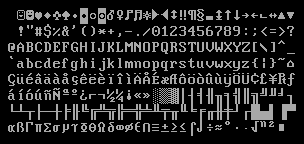
We will discuss the exact layout of the VGA buffer in the next post, where we write a first small driver for it. For printing “Hello World!”, we just need to know that the buffer is located at address 0xb8000 and that each character cell consists of an ASCII byte and a color byte.
The implementation looks like this:
static HELLO: &[u8] = b"Hello World!";

#[no_mangle]
pub extern "C" fn _start() -> ! {
    let vga_buffer = 0xb8000 as *mut u8;

    for (i, &byte) in HELLO.iter().enumerate() {
        unsafe {
            *vga_buffer.offset(i as isize * 2) = byte;
            *vga_buffer.offset(i as isize * 2 + 1) = 0xb;
        }
    }

    loop {}
}
First, we cast the integer 0xb8000 into a raw pointer. Then we iterate over the bytes of the static HELLO byte string. We use the enumerate method to additionally get a running variable i. In the body of the for loop, we use the offset method to write the string byte and the corresponding color byte (0xb is a light cyan).
Note that there's an unsafe block around all memory writes. The reason is that the Rust compiler can't prove that the raw pointers we create are valid. They could point anywhere and lead to data corruption. By putting them into an unsafe block we're basically telling the compiler that we are absolutely sure that the operations are valid. Note that an unsafe block does not turn off Rust's safety checks. It only allows you to do five additional things.
I want to emphasize that this is not the way we want to do things in Rust! It's very easy to mess up when working with raw pointers inside unsafe blocks, for example, we could easily write beyond the buffer's end if we're not careful.
So we want to minimize the use of unsafe as much as possible. Rust gives us the ability to do this by creating safe abstractions. For example, we could create a VGA buffer type that encapsulates all unsafety and ensures that it is impossible to do anything wrong from the outside. This way, we would only need minimal amounts of unsafe and can be sure that we don't violate memory safety. We will create such a safe VGA buffer abstraction in the next post.
Running our Kernel
Now that we have an executable that does something perceptible, it is time to run it. First, we need to turn our compiled kernel into a bootable disk image by linking it with a bootloader. Then we can run the disk image in the QEMU virtual machine or boot it on real hardware using a USB stick.
Booting it in QEMU
We can now boot the disk image in a virtual machine. To boot it in QEMU, execute the following command:
> qemu-system-x86_64 -drive format=raw,file=target/x86_64-blog_os/debug/bootimage-blog_os.bin
warning: TCG doesn't support requested feature: CPUID.01H:ECX.vmx [bit 5]
This opens a separate window with that looks like this:

We see that our "Hello World!" is visible on the screen.
Real Machine
It is also possible to write it to an USB stick and boot it on a real machine:
> dd if=target/x86_64-blog_os/debug/bootimage-blog_os.bin of=/dev/sdX && sync
Where sdX is the device name of your USB stick. Be careful to choose the correct device name, because everything on that device is overwritten.
After writing the image to the USB stick, you can run it on real hardware by booting from it. You probably need to use a special boot menu or change the boot order in your BIOS configuration to boot from the USB stick. Note that it currently doesn't work for UEFI machines, since the bootloader crate has no UEFI support yet.
Using cargo run
To make it easier to run our kernel in QEMU, we can set the runner configuration key for cargo:
# in .cargo/config.toml

[target.'cfg(target_os = "none")']
runner = "bootimage runner"
The target.'cfg(target_os = "none")' table applies to all targets that have set the "os" field of their target configuration file to "none". This includes our x86_64-blog_os.json target. The runner key specifies the command that should be invoked for cargo run. The command is run after a successful build with the executable path passed as first argument. See the cargo documentation for more details.
The bootimage runner command is specifically designed to be usable as a runner executable. It links the given executable with the project's bootloader dependency and then launches QEMU. See the Readme of bootimage for more details and possible configuration options.
Now we can use cargo run to compile our kernel and boot it in QEMU.
What's next?
In the next post, we will explore the VGA text buffer in more detail and write a safe interface for it. We will also add support for the println macro.